Mix Media Higgsfield Ai Video Editing – A video is going viral on social media that shows how your normal video can be converted into a cartoon video. Whatever reactions you make in the video, you see the exact same reactions live in the cartoon version. The timing is perfect, with no mismatches whatsoever. Your face is also perfectly matched. It creates the video with 100% accuracy. Whatever reactions you make, it replicates them with complete detail. In this video article, we will learn how to do this kind of editing. We’ll see how simple it is to create this type of editing and how you can create and make it go viral. I have all the steps. I want you to follow them and complete this type of editing.
Details – Mix Media Higgsfield Ai Video Editing
By the way, let me talk about this video. The video shows us different kinds of things. For example, the beginning is set to match the song. You can create a video, but it won’t have the song. You’ll have to upload it to Instagram or edit it separately. I’ll tell you the steps on how to do that. Initially, there will be a normal clip. The later part of this clip will be converted into a cartoon style. This is called Studio Mix Layer. This is currently the best tool available on the Higgsfield AI platform. You can use it to create your videos. I’ll share the details with you. You should definitely try it out and let us know what you think.
How To Create Mix Media Higgsfield Ai Video Editing ?
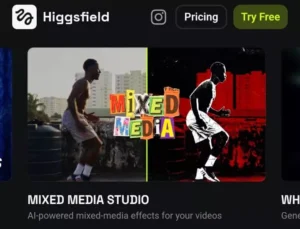
Now, how to create this video? I’ll get straight to the point because I don’t want to confuse you with unnecessary details. You can create any kind of video on this platform, there’s no problem with that. First, you need to go to Google and search for “Higgsfield AI”. I’ve added the direct link here, but I’m still explaining the process. Even without signing up, you can see everything on the website, but you need to sign up because you can’t create a video without an account. After signing up, you’ll find “Layer Mix Media” at the top. Go there, and once you select it, you’ll see an upload option. You’ll find the upload option in the middle of the screen. Click on it and select your video clip. You don’t need to change anything else. The video you select should be 10 seconds long. Longer videos won’t upload. Then, you’ll find a generate button at the bottom. Click on it, and it will use some credits to generate the video. When you log in for the first time, you get some free credits, which you can use to generate these videos.
How will you do the video editing?
Now, this is the important part to understand. Whenever you select a video, when you’re creating it, as I mentioned, you’ll select a specific field. You need to select it that way, but now, what you’ll do is select the last 10 seconds, leaving out the first few seconds. You’ll add the part you left out to your editing application. You can use any editing application. Then, you need to add this edited video. After that, you need to split it from the next part. That is, you need to cut the video at the point where the first part ends and the second part, which we edited, begins. Merge both parts. That’s it, your video will be perfectly ready. You’ll see that your video is ready just like a professional editor’s work.
Conclusion
The editing details we’ve explained are presented in a clear and unique way so you can perform professional-level editing. You’ll definitely appreciate the details we’ve shared because we’ve explained the easiest, most viral, and trending method – a truly genuine approach. You won’t be able to create this kind of video with the same results using any other method.