Bairan Viral Capcut Template – Currently, the content you see truly going viral on Instagram Reels and YouTube Shorts is characterized by an emotional, cinematic editing style. You have likely encountered a specific type of editing within this trend—one featuring a “flashback” effect. Your video plays along, then suddenly pauses, at which point a full flashback sequence appears. Given how frequently you must have come across this particular editing style, I highly recommend that you, too, start creating videos using it right away. I am going to share with you various template styles that you can utilize to effortlessly produce your own viral videos. We will learn exactly how to create a professional-quality video set to this song, covering the entire process step-by-step.
Breakdown Of This Editing
Let’s break down the entire editing process. Afterward, I’ll show you exactly how it’s done. Our video begins with a standard clip. Initially, it seems as though a beat-driven effect or a simple transition is about to occur; however, the action pauses, and a “flashback” style effect begins to emerge in the background. This specific flashlight effect is a randomized element that appears automatically at that particular point. All you have to do is insert your own clip there—just as I did—and that same flashback effect will automatically be applied to your video as well. It appears spontaneously, starting subtly at first, and then continues to play out in the background—behind the main subject—right through to the very end of the video. Applying this effect is actually quite simple; however, I will first walk you through the template process, and then I’ll explain exactly how you can implement this specific effect yourself.
Why This Editing Style Is Trending
This style of editing, currently highly trending, creates a deep emotional connection. It features elements such as memories, romantic moments, and breakup clips—much like the “flashback” editing style I previously described. It evokes nostalgia, allowing viewers to personally relate to the content. Furthermore, the editing automatically syncs with the music; specifically, flashback effects and visuals begin to appear precisely at those points in the audio where such a transition feels most appropriate. Given that this trend is currently going viral, it is being utilized extensively; therefore, you should create your own version as soon as possible.
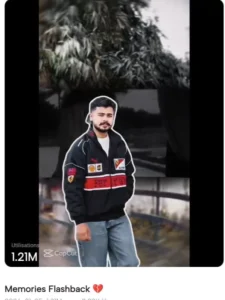
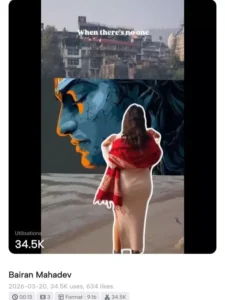
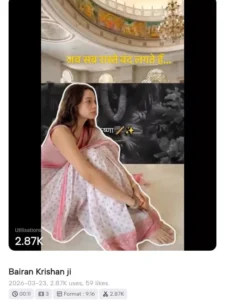
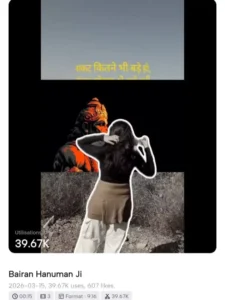
How To Use Bairan Viral Capcut Template
To perform the editing, you simply need to have the CapCut application installed. I have also shared a code alongside it; you can scan this code within the editor to utilize it, and you can apply the template directly within CapCut. First, let’s discuss the CapCut template. To begin with, to use the template, you will find a “Use Template” button provided right here. Separate links will be shared for each distinct template; by clicking on these links, you can navigate directly into the editor interface. Once there, the first step is to select your video footage. You should select a single video clip; the second clip is automatically generated by capturing and adding the very last frame of your selected video. It is important to keep this in mind, so ensure that the final frame of your video looks visually appealing. As soon as you have added the clip, click on “Next.” The application will then finalize the video and present the result to you. Once you are satisfied that the editing is absolutely perfect, simply click “Export,” and your editing process will be complete.
How To Create Flashback Editing
To create this specific flashback-style edit, first add a video clip. Next, select a layer and apply the “Freeze Frame” option. You will then apply the actual flashback effect to this frozen frame. Enlarge the frame to fit the screen; you can find this specific flashback effect directly on Instagram. Once selected, navigate to the “Mask” option; apply a “Mirror Mask” and reduce its size to the absolute minimum. Now, add a keyframe at the very beginning of the clip. Then, add a second keyframe at the very end and fully expand the mask. Finally, duplicate the frozen frame you created earlier, place it as an overlay, and simply remove its background. And just like that, your flashback edit is complete!