Double Exposure Ai Photo Editing Prompts – Friends, as you all know, everyone is currently enjoying their summer vacation. During these holidays, most people are heading out to travel—a favorite pastime for children and adults alike. Naturally, when people go on trips, they make sure to snap plenty of photos. If you take a standard photo and upload it to your status or story, it can be transformed into something so incredibly beautiful and aesthetic that you won’t believe it’s the same image. In fact, even if you haven’t actually gone anywhere, you can still create this kind of stunning photo; and when you post it to your story, everyone will assume you’ve been traveling—sparking all sorts of curiosity and conversation!
Common mistake to avoid
Friends, as you all surely know, whenever you attempt photo editing, you inevitably tend to make certain common mistakes—errors that almost everyone commits—which prevent their photos from turning out well. Therefore, I am going to highlight a few of these common pitfalls; if you avoid them, your photos will look 100% realistic. The very first common mistake is failing to use a clear source image; if your face isn’t clearly defined in the original shot, the resulting edited photo will inevitably turn out poorly. The second common mistake involves over-editing the image—applying excessive adjustments that make the final result look very unnatural and unappealing. Furthermore, another error is over-smoothing the skin; this makes the photo look extremely artificial and unattractive, so you should refrain from doing it.
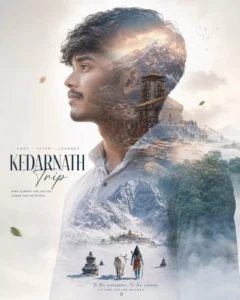
Create a cinematic double-exposure travel poster for “Manali, Himachal” using my uploaded photo. Keep the same face, pose, outfit, sunglasses, and natural features unchanged. Blend Himalayan valleys, pine forests, misty mountains, winding roads, rivers, and clouds inside the portrait silhouette. Add a small full-body version beside a scooter/bike on a mountain road. Style: luxury Himalayan tourism campaign, dreamy matte tones, soft fog, atmospheric depth, realistic blending, minimal typography, clean white background, ultra-realistic editorial aesthetic. Text: “Manali”. “Himachal”. “TRAVEL• BREATHE• ESCAPE”
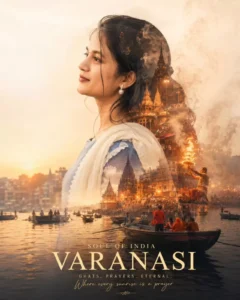
Create a cinematic double-exposure travel poster for “Rishikesh, Uttarakhand” using my uploaded photo. Keep the same face, pose, outfit, and natural features unchanged. Blend Himalayan valleys, pine forests, misty mountains, winding roads, rivers, and clouds inside the portrait silhouette. Add a small full-body version beside a bike on a mountain road. Style: luxury Himalayan tourism campaign, dreamy matte tones, soft fog, atmospheric depth, realistic blending, minimal typography, clean white background, ultra-realistic editorial aesthetic. Text. “Rishikesh” “Uttarakhand”. “TRAVEL • BREATHE • ESCAPE” don’t change face
Pro tips for creat your image
Let me share a few tips with you: if you keep these points in mind while creating your photo edits, the results will turn out truly excellent and spectacular. The first point is this: always use a clear photograph. If you input a clear image, the final edited photo will also be crisp and clean, and your facial features will remain unaltered. The second point is equally important: ensure your background is also clear. Specifically for this type of photo editing, both your background and your face need to be distinct and clear; this allows the system to accurately analyze the image and process the edit. Furthermore, if you upload an HD photo, the output will also be delivered in HD quality—because if you provide an HD input, you will receive an HD output in return. If you don’t believe me, give it a try yourself!
How To Creat Image
And finally, let’s learn how to perform this photo editing process—ensuring there are no issues with the final outcome—and discover which application to use to create truly stunning photos. Let me tell you: use ChatGPT. It is a highly popular and renowned application specifically designed for image creation. When you open the app, you will be presented with an interface; simply click on the “Plus” option to first select your base image. Next, click the “Plus” icon once again to add your specific photo—ensure you add a clear, high-quality image. Then, copy the prompts that we have painstakingly curated and provided on our website, paste them into the app, and hit “Generate.” Your photo will be created in HD quality and will be ready in no time, yielding truly spectacular results.